---
title: How to Use Order Templates
description: How do I create a new template? Create a template for faster ordering for frequently ordered parts or for jobs that you quote.
---
[Skip to content](https://resources.transend.us/help-center/hot-to-use-order-templates#main-content)
[Contact us](https://resources.transend.us/help-center/kb-tickets/new?hsLang=en)
[](https://resources.transend.us/help-center?hsLang=en)
- Additional Resources
Show submenu for Additional Resources
- [Transend Resource Center](https://resources.transend.us/help-center)
- [Video Library](https://transend.us/content/video/)
- [Warranty Support](https://resources.transend.us/warranty-support)
Open main navigation
Close main navigation
- Additional Resources
Show submenu for Additional Resources
- [Transend Resource Center](https://resources.transend.us/help-center)
- [Video Library](https://transend.us/content/video/)
- [Warranty Support](https://resources.transend.us/warranty-support)
- [Contact us](https://resources.transend.us/help-center/kb-tickets/new)
- [Visit Transend](https://transend.us/)
[Visit Transend](https://transend.us/)
How can we help you?
- There are no suggestions because the search field is empty.
1. [Transend Resource Center](https://resources.transend.us/help-center?hsLang=en)
2. [Guide](https://resources.transend.us/help-center/guide?hsLang=en)
3. [Features](https://resources.transend.us/help-center/guide?hsLang=en#features)
July 21, 2026
# How to Use Order Templates
## Want to learn more about templates? Create a template for faster ordering of frequently ordered parts, and share templates with other users.
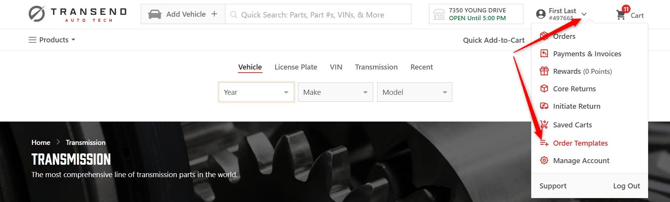
- To create a template, go to the down arrow next to your name and select "**Order Templates**"
- Select "**Create New Template**"

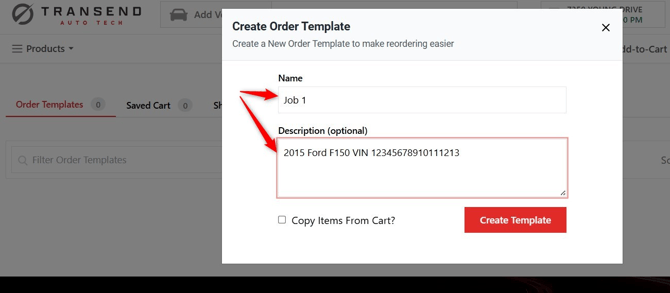
- Name your template and provide a description
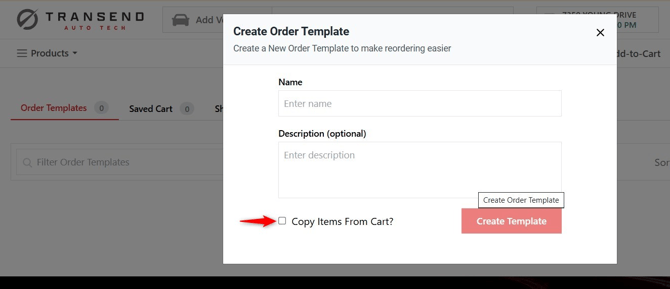
- If you have the items for this template already in your cart, select the "**Copy Items From Cart**" button. This will copy the items already in your cart
- Click on "**Create Template**"
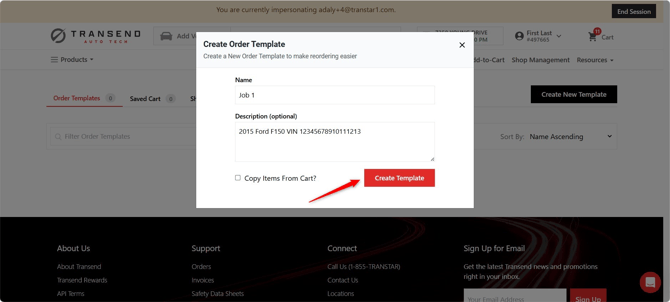
- Your new template will now appear under the "**Order Templates**" tab
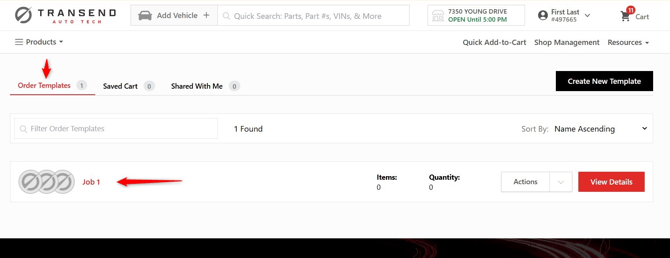
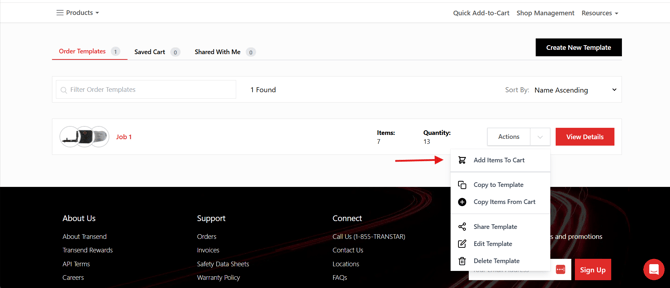
- To use the template after saving it, click on the "**Actions**" drop down and select "**Add Items To Cart**"
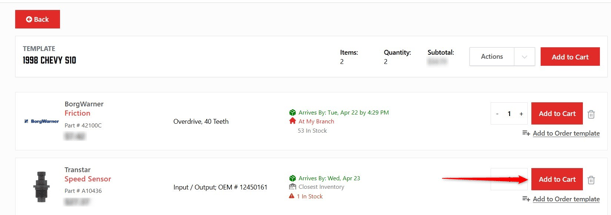
- Or you can select **"View Details"** to select individual items to put into your cart

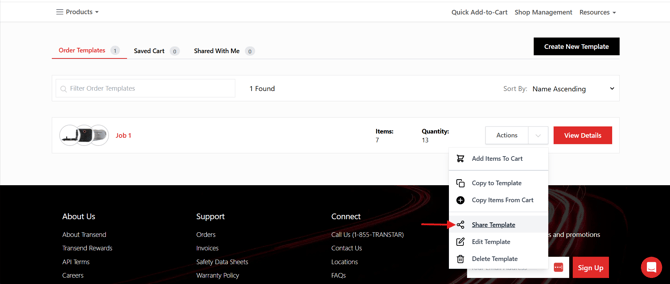
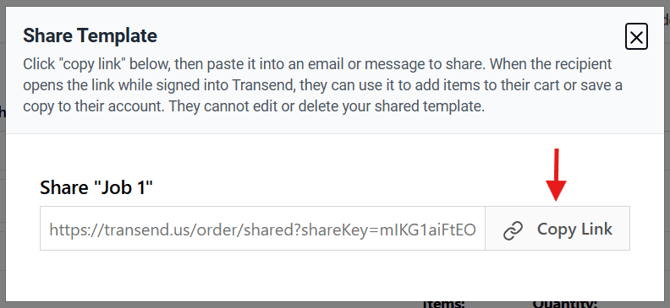
- To share the template, click on the "**Actions**" drop down and select "**Share Template**"
- When the pop-up window opens, click "**Copy Link**" to copy the link to your clipboard that you can paste in a text or email to whom you wish to send it
**NOTE:**
- You cannot edit/delete the shared template, but you can use or copy it.
- Once a shared template is copied/saved to your "Order Templates", it will no longer be affiliated with the shared version, meaning you can at this point edit it.
**Received Shared Link**
- Log in to your Transend account
- Open the received email and click on the link.
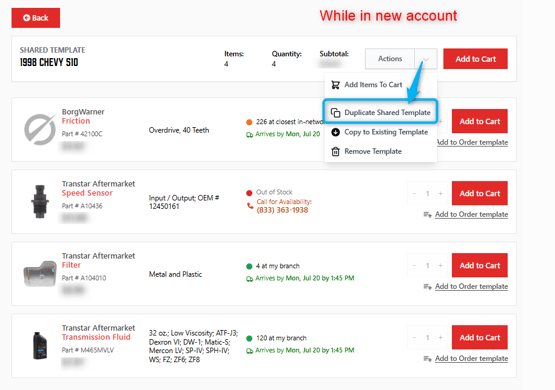
- Under Actions, select "**Duplicate Shared Template**"
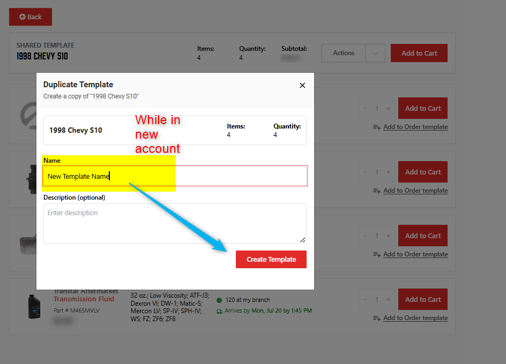
- A pop-up will appear, type in new template name
- Then "**Create Template**"
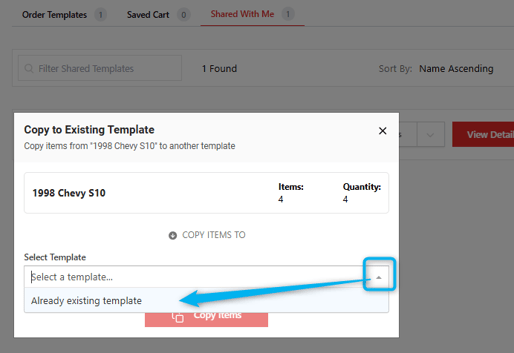
**Adding to Existing Template**
Select "**Copy to Existing Template**"
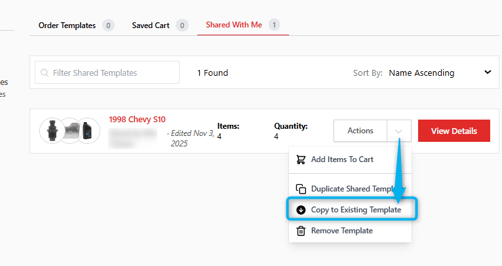
Click the arrow button
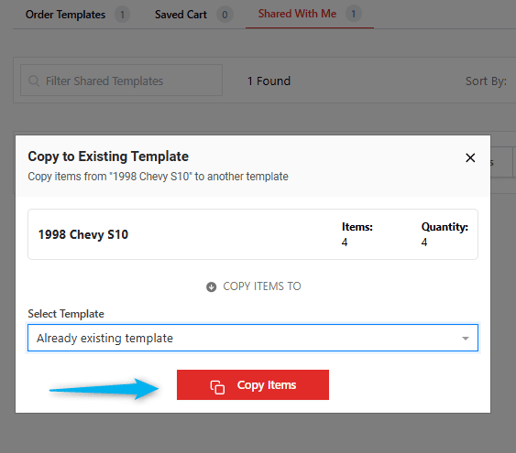
Select your existing template
Select "**Copy Items**"
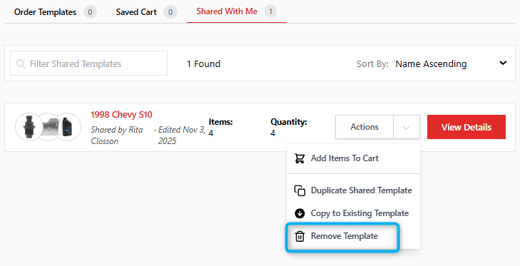
**Removing shared template**
Select "**Remove Template**"
Need assistance? Contact Transend Support at [support@transend.us](mailto:support@transend.us)
- [Getting started](https://resources.transend.us/help-center/getting-started?hsLang=en#main-content)
- [Account Setup](https://resources.transend.us/help-center/getting-started?hsLang=en#account-setup)
- [System Connections](https://resources.transend.us/help-center/getting-started?hsLang=en#system-connections)
- [Account](https://resources.transend.us/help-center/account?hsLang=en#main-content)
- [Setup](https://resources.transend.us/help-center/account?hsLang=en#setup)
- [Guide](https://resources.transend.us/help-center/guide?hsLang=en#main-content)
- [Features](https://resources.transend.us/help-center/guide?hsLang=en#features)
- [General](https://resources.transend.us/help-center/general?hsLang=en#main-content)
- [Returns](https://resources.transend.us/help-center/general?hsLang=en#returns)
- [Warranty](https://resources.transend.us/help-center/general?hsLang=en#warranty)
- [Products](https://resources.transend.us/help-center/products?hsLang=en)
[](https://transend.us/)
Simplifying complex vehicle repair to keep the world moving.
[7350 Young Drive Walton Hills, Ohio, 44146](https://maps.app.goo.gl/VDeUiM8Yxqfmd3C89)
[mailto:TransendSupport@transend.us](mailto:TransendSupport@transend.us)
© NexaMotion Group, LLC. All rights reserved.